

How to Use the Note-Taking Feature to Boost Work Efficiency by 200%
Reading time: 10 minutes
One useful tool that helps businesses manage tasks effectively today is the “ticket.” Understanding how to use the ticketing feature will help you and your team minimize errors and optimize workflows.
What is a ticket?
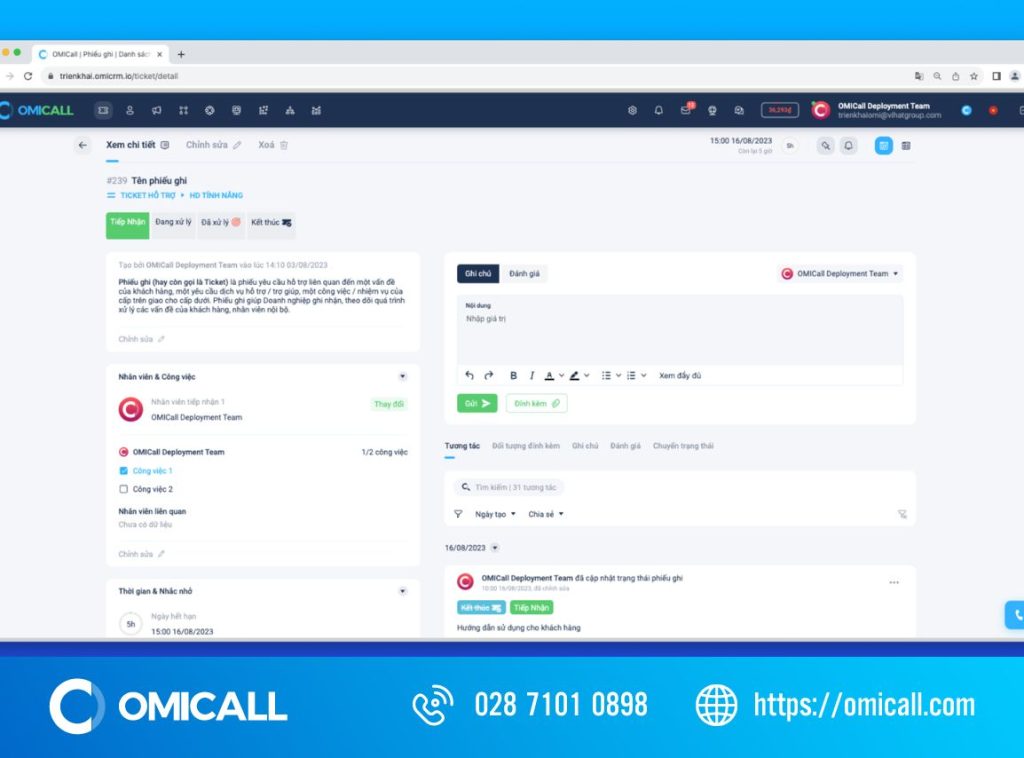
What is a ticket?
A ticket is a tool used to manage and process support or service requests regarding issues encountered by customers or employees. These tickets capture not only customer support requests but also service requests, internal support needs, and work tasks assigned by supervisors to subordinates.
Tickets play a crucial role in helping businesses record and track the details of issue resolution. This ensures that all requests from customers and employees are addressed promptly and effectively while establishing a clear, transparent workflow management system. Utilizing a ticketing system helps businesses improve service quality, boost customer satisfaction, and enhance internal staff productivity.
Key components of a ticket
To use the ticketing feature effectively, it is essential to understand its components.
Status set

The ticket status set reflects the processing progress of each request. Users can customize the status values and select names that suit their specific needs, provided they adhere to the following principles:
- Start status: This is the initial status in the status set and serves as the default value for newly created tickets.
- Completion status: Represented by the “Completed” icon, this status—which can be positioned as desired—marks a ticket as processed. Ticket progress is tracked based on this status; from this point onward, a ticket is considered on schedule if the transition occurs before the deadline.
- End status: Represented by the “Closed” icon, this status is always positioned at the very end of the status set. Tickets in this status are considered inactive.
Users can set both the completion status and the final status in the same location. Expired tickets can be automatically hidden to reduce clutter on the Status tab.
Information sections
Tickets contain the necessary information and attributes based on specific topic sets. Businesses can customize these attributes and define default ticket values to suit their operational needs. For more details, please refer to the configuration guide for ticket Topics and Attributes.
The basic information comprising a ticket includes:
- Priority: Determines the urgency and importance of the request.
- Topic / Classification: Categorizes the ticket by specific topics or categories for easier management and processing.
- Subject: Summarizes the main content of the request in a concise line.
- Description: Provides details regarding the request or the issue to be resolved.
In addition, there are other dynamic attribute fields that business owners can define themselves to meet their specific management needs.
Employees & Tasks
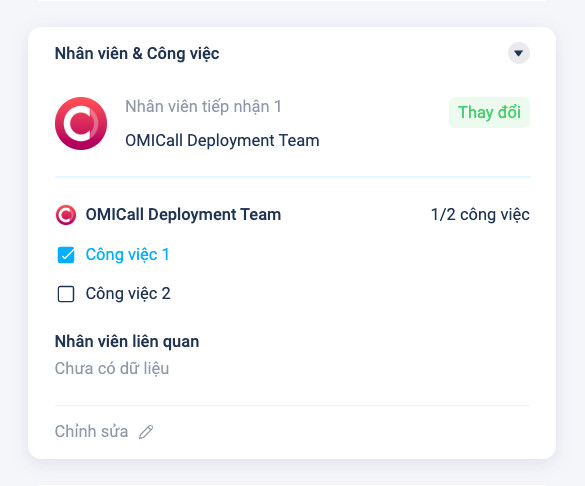
Staff and Work
- Assigned Staff: This is the person directly responsible for handling the ticket. Their progress and the outcome of the ticket processing are recorded and tracked in the Statistics section.
- Involved Staff: These staff members have access to view, interact with, and receive notifications regarding any updates related to the ticket. This ensures that all relevant parties are kept informed and can participate when necessary.
- Task List: This tool is used to assign specific tasks to individual assigned staff members. The list facilitates more effective workload management, ensuring that each task is assigned to the right person and completed on schedule.
Timelines & Reminders
Every ticket, upon creation and assignment to a staff member, is assigned a due date. This date can be set automatically based on pre-configured topic settings or selected by the creator when the ticket is generated.
The assigned staff member is responsible for processing the ticket and updating its status to “Completed” before the due date. If the ticket is not completed by this deadline, it is considered overdue. This process ensures that all requests are addressed in a timely manner, helping to maintain operational efficiency and customer satisfaction.
Categorization & Attachments
- Tag-based classification: Tickets can be classified in detail and with precision by applying specific tags. These tags facilitate the organization, searching, and management of tickets based on specific criteria.
- Attachments: All files, images, and documents related to every interaction within a ticket are stored in the attachments section.
Ticket interaction
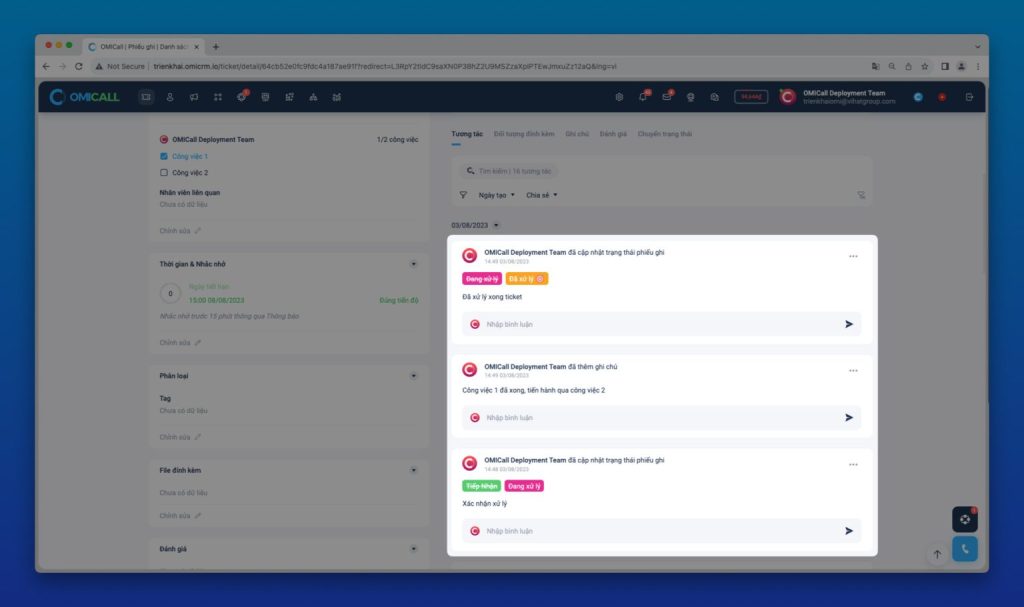
Ticket Interaction Logs
A complete history of interactions is stored, including status changes, responses from staff and customers, and any modifications to information. This ensures that every action related to a ticket is recorded in detail, providing a comprehensive view of the processing workflow and facilitating easy tracking and management.
How to Manage Tickets
Managing Tickets in List View
Access the “List” tab on the Tickets screen. All tickets are displayed in a list format, provided they are not hidden by the “Auto-hide” configuration.

Managing tickets in list view
Ticket filters
Filters allow you to categorize tickets based on available attributes, making it easy to search for and manage them. If you cannot find the desired filter value, use the “Other filters” button to search for additional filter attributes, or the “Reset” button to clear current filter settings.
Filter presets allow you to quickly filter tickets that you created or that have been assigned to you. This facilitates the efficient and accurate tracking and processing of ticket progress.
Searching for tickets
Users can search for tickets by entering keywords into the search bar located at the top of the list, above the ticket attribute headers.
Display configuration
The “Display configuration” button, located at the top right of the ticket list, allows you to rearrange the order or toggle the visibility of ticket attribute fields according to your individual preferences.
Managing tickets using the Kanban board
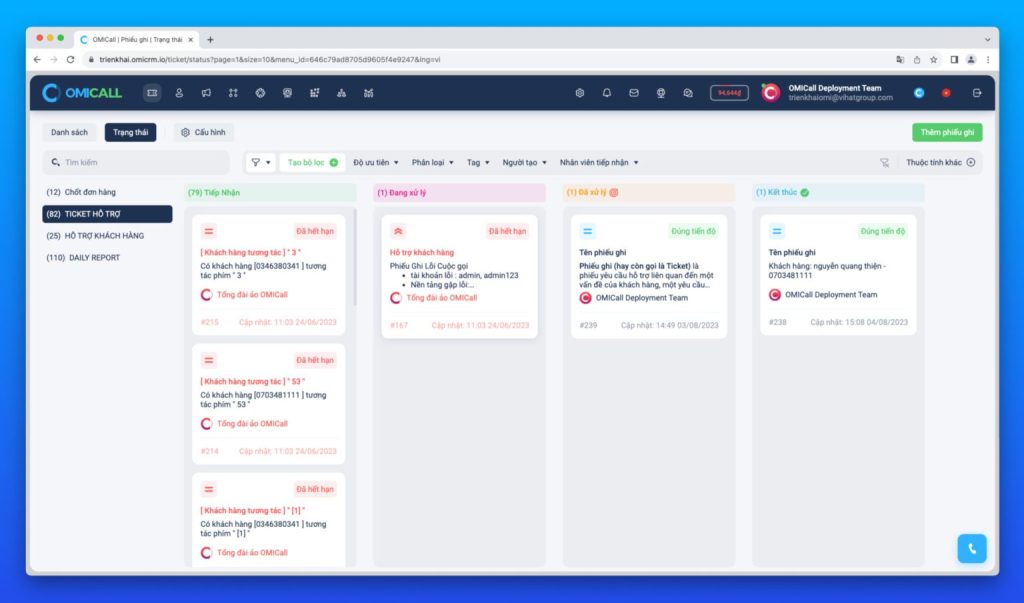
Managing Tickets via Kanban Board
To access ticket statuses, navigate to the “Status” tab on the Tickets screen. Here, all tickets are displayed on a Kanban board, subject to any “Auto-hide” configuration settings.
The Kanban board is divided into columns, with each column corresponding to a specific ticket status. A ticket is placed in the column that matches its current status. You can change a ticket’s status by dragging and dropping it into the column representing the desired status.
Learn how to use the ticketing feature in just a few steps
Creating a New Ticket
Use the “Add Ticket” button located in the top-right corner of the “List” or “Status” tab to open the creation window.
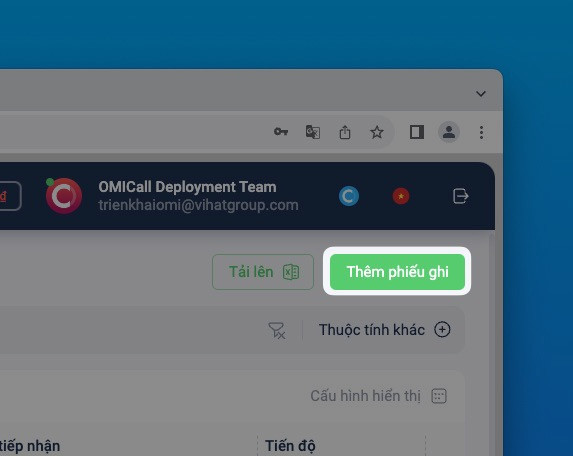
Creating a New Ticket
Changing Status
Changing status within the ticket details view
Select any ticket from the “List” or “Status” tab and click on it to open the ticket details window. To change the status, click on any status option on the Status Bar. A confirmation dialog will appear, allowing you to enter feedback regarding the status change.
This action logs the status change interaction along with your notes, helping relevant staff understand the reason for the change or the ticket’s progress update.
Changing status in the Status tab
The “Status” tab displays a list of tickets in a column format, where each column represents a specific ticket status. Tickets are categorized by topic via the menu on the left side of the list, making it easy for users to search for and manage them.
To change a ticket’s status, simply drag and drop the ticket into the column corresponding to the desired status. This method is not only intuitive but also facilitates effective tracking of processing progress.
Other Actions
Right-click on a ticket to access the following functions:
- View details in a new tab
- View details
- Pin or unpin the note
- Turn notifications off or on
Functions exclusively for business owners:
- Change intake staff
- Export to Excel
- Delete selected items
Ticket Configuration
Every ticket is associated with a specific category upon creation, and each category features its own distinct set of statuses and attributes. Business owners can leverage the smart ticketing feature by creating various categories—each with its own specific statuses and attributes—to apply to individual tickets, thereby enhancing workflow management efficiency.
Additionally, categories can define preset values for tickets, such as the assigned agent, relevant staff members, due dates, maximum processing times, and auto-hide intervals. These values are automatically applied based on the selected category when a new ticket is created, ensuring a process that is both consistent and flexible.
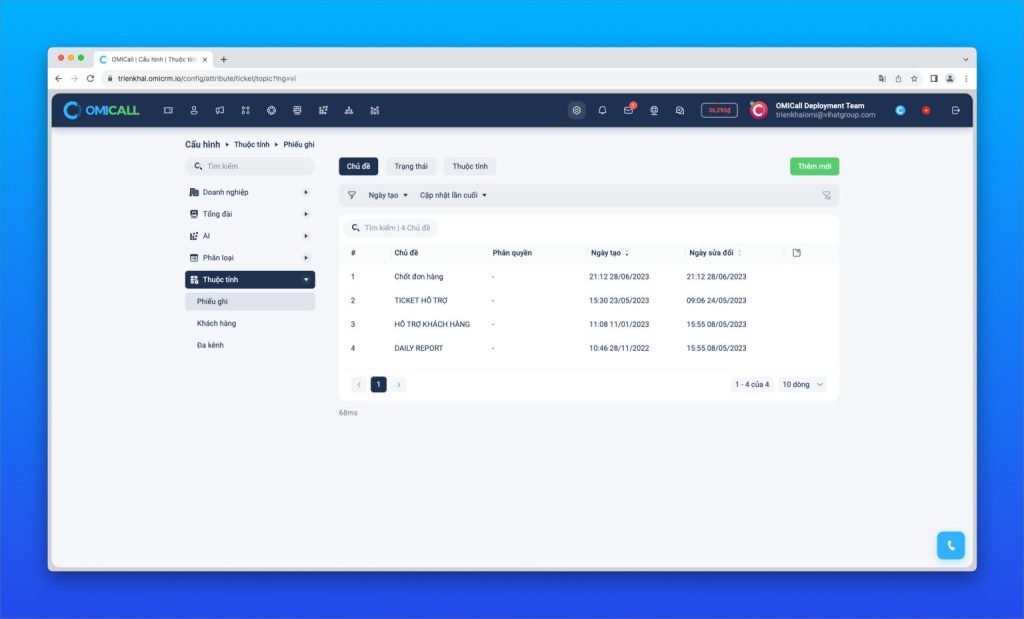
Ticket Configuration
Ticket Topics
In the topic management section, you can create topics with customized ticket values tailored to your business’s specific needs.
Auto-hide
Tickets in a “closed” state (the final status) are considered resolved and no longer active. In the status-based ticket management view (Tickets / Status), an excessive number of closed tickets can clutter the data and hinder the processing of active tickets.
To minimize clutter, you can configure these tickets to be hidden from the view after a specified period (e.g., automatically hidden 7 days after closure).
The auto-hide configuration can be customized flexibly for different topic sets. To set this up, select a topic and locate the “Auto-hide tickets” option within that topic’s configuration settings.
Ticket Statuses
You can customize the color for each specific status, enhancing visibility and management efficiency during the ticket processing workflow.
Ticket Attributes
In this configuration section, you can customize the layout and order of attribute fields to suit your business’s specific requirements.
Watch the tutorial video
- Guide to using tickets – For Staff accounts: View here
- Guide to configuring cross-departmental support tickets – For Manager accounts: View here
Conclusion
In summary, mastering the use of the ticketing feature not only helps you better track and manage tasks but also boosts the productivity of your entire team. By fully leveraging the available functions and appropriate settings, businesses can ensure that all requests are handled promptly and accurately, thereby fostering a professional and efficient work environment.
For further information, please contact:
VIHAT TECHNOLOGY Co., Ltd
Headquarters: ViHAT Building – 06 Street No. 16 (Him Lam Residential Area) – Hiep Binh Chanh Ward – Thu Duc District – Ho Chi Minh City
Hanoi Branch: Floor 15, LADECO Building, 266 Doi Can, Ba Dinh, Hanoi
Cambodia Branch: Thida Rath #154 St. 33MC, Sangkat Steung Meanchey, Khan Mean Chey, Phnom Penh

-
 What is TikTok advertising? Advertising policies and how it works.
-
 Exploring Conceptual Selling – Understanding Modern Sales Trends Correctly
-
 What is a KOC? Distinguishing between KOLs and KOCs.
-
 What Are Customer Insights? Revealing How to Effectively Uncover Them
-
 What is Digital Marketing? 10 Effective Forms of Digital Marketing
-
 What is Online Marketing? Types of Online Marketing