
How to Use the OMICall App on Your Phone
Reading time: 12 minutes
Communication is vital to any organization. Understanding this, OMICall offers a smart calling platform that combines customer data and business management directly on your phone. The following guide on how to use the OMICall app will help businesses reach customers more quickly and effectively.
1. Overview of the OMICall App
OMICall is a fully featured virtual call center application that supports individuals and businesses in making VoIP calls over 4G or WiFi networks. The application helps businesses optimize communication costs, improve work efficiency, and ensure user convenience anytime, anywhere.
Key features of the OMICall app:
Make calls: Direct VoIP calls with stable quality. Supports domestic and international calls at cost-effective prices.
Call history: Stores and displays details of all calls made. Easily search and manage contact information.
Customer management: Professional customer directory management system. Supports searching, categorizing, and adding detailed notes.
Customer-related task logs: Help track and remind you of tasks related to customers.

TOverview of the OMICall app
2. Instructions for installing the OMICall app
2.1 Instructions for installing the OMICall application on iOS
Step 1: Download and install the application
- Access the link or search for “OMICall” on the App Store.
- Click Download and wait for the installation to complete.
Step 2: Open the application
After installation is complete, tap Open or find the OMICall icon on your phone’s home screen and tap it to launch the application.
Step 3: Grant permissions to the application
When you open the app for the first time, you need to allow the following permissions:
- Notifications to receive important information.
- Microphone for making calls.
- Contacts are used to manage and synchronize customer information.
Note regarding compatible devices
OMICall requires iOS 15.0 or later and is compatible with the following devices:
- iPhone : iOS 15.0 or later.
- iPad : iOS 15.0 or later.
- iPod Touch : iOS 15.0 or later.
The application will work best on devices with powerful configurations and the latest updated operating system.
2.2 Instructions for installing the OMICall application on Android
Similar to iOS phones, Android users can also follow the same steps to install the OMICall app.
Step 1: Download and install the application
- Access CH Play (Google Play Store) or search for “OMICall” on the app store.
- Tap Install and wait for the process to complete.
Step 2: Open the application
After installation, tap Open or find the OMICall app icon on your home screen and tap it to launch the application.
Step 3: Grant permissions to the application
When you open the app for the first time, you need to allow the following permissions:
- Notifications to receive important information.
- Microphone for making calls.
- Contacts are used to manage and synchronize customer information.
Note regarding compatible devices
OMICall works best on devices with 4GB or more of RAM and Android 8.0 or later.
3. How to use the OMICall app with its common features
The OMICall app helps users make calls quickly and professionally with many flexible options. Its intuitive interface helps businesses optimize communication processes, ensuring a smooth and efficient experience.
3.1 Call Making Feature
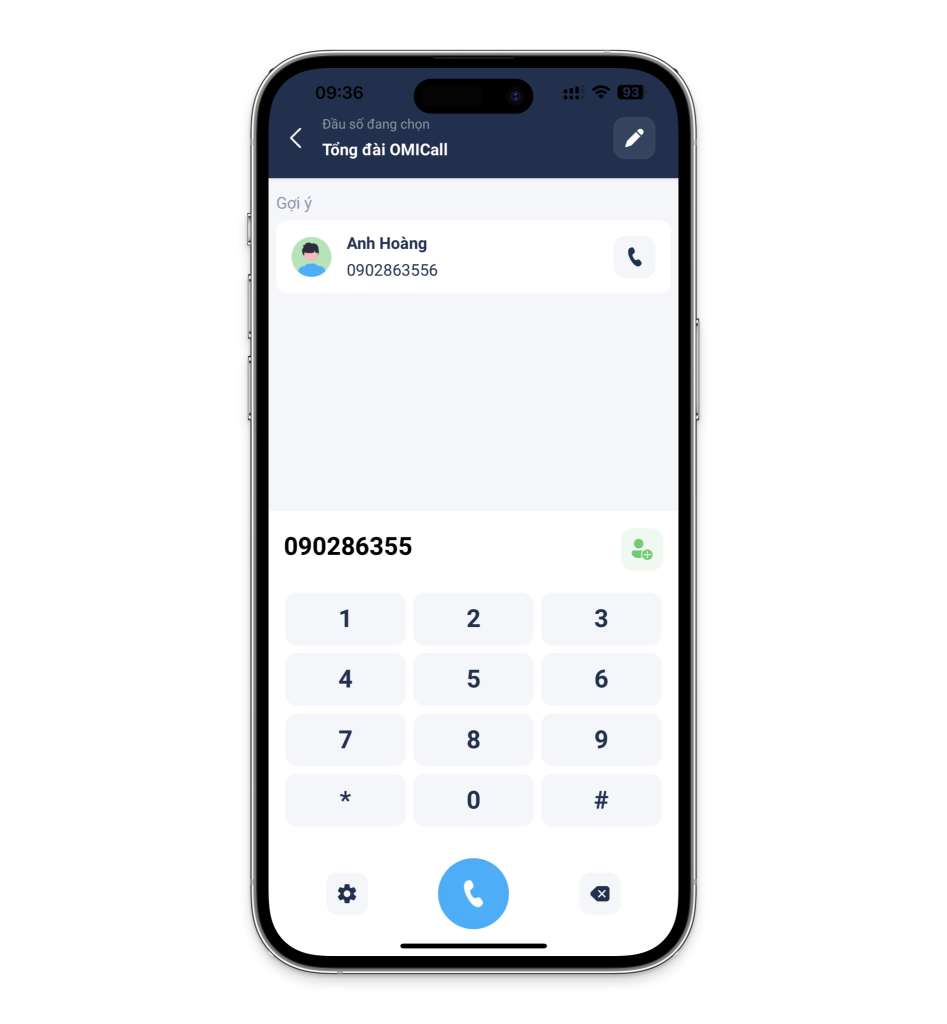
Call making feature
- Tap the Call button icon to start a call.
- Before calling, you can select your preferred hotline number (if the business has multiple numbers).
- Enter the customer’s phone number or the internal employee number you want to contact, then press Call .
Note: If the phone number is not saved in your contacts, the system will display it as “Unknown”. Users can easily identify the customer thanks to the information displayed on the call screen.
The call screen will display important information.
- Outgoing and receiving phone numbers
- Customer name (if in the contact list)
- Note down the most recent call to easily track your call history.
- Call duration
- Network speed is displayed in colors: Green: Strong network, ensuring good call quality. Yellow: Average network, may affect call quality. Red: Weak network, may cause call interruptions.
In-call support functions
OMICall offers many important features that help users easily control and optimize their calling experience:
- Turn the speakerphone on/off.
- Turn microphone on/off
- Open the numeric keypad to enter numbers when needed.
- Call hold (Under development)
- Call forwarding (Under development)
- End the call.
Complete the call and manage the information.
After the call ends, users can: Add tags to categorize the call by content or priority level. Use call notes to save important information.
This will help businesses provide better customer service thanks to detailed call history. It makes it easy to look up and track customer interactions. Furthermore, integration with CRM will help manage contact data effectively.
3.2 Call History Feature
The Call History feature in the OMICall app helps users manage and track all calls, including calls with customers and internal calls between employees. This feature helps businesses easily control communication, improve work efficiency, and optimize customer service.
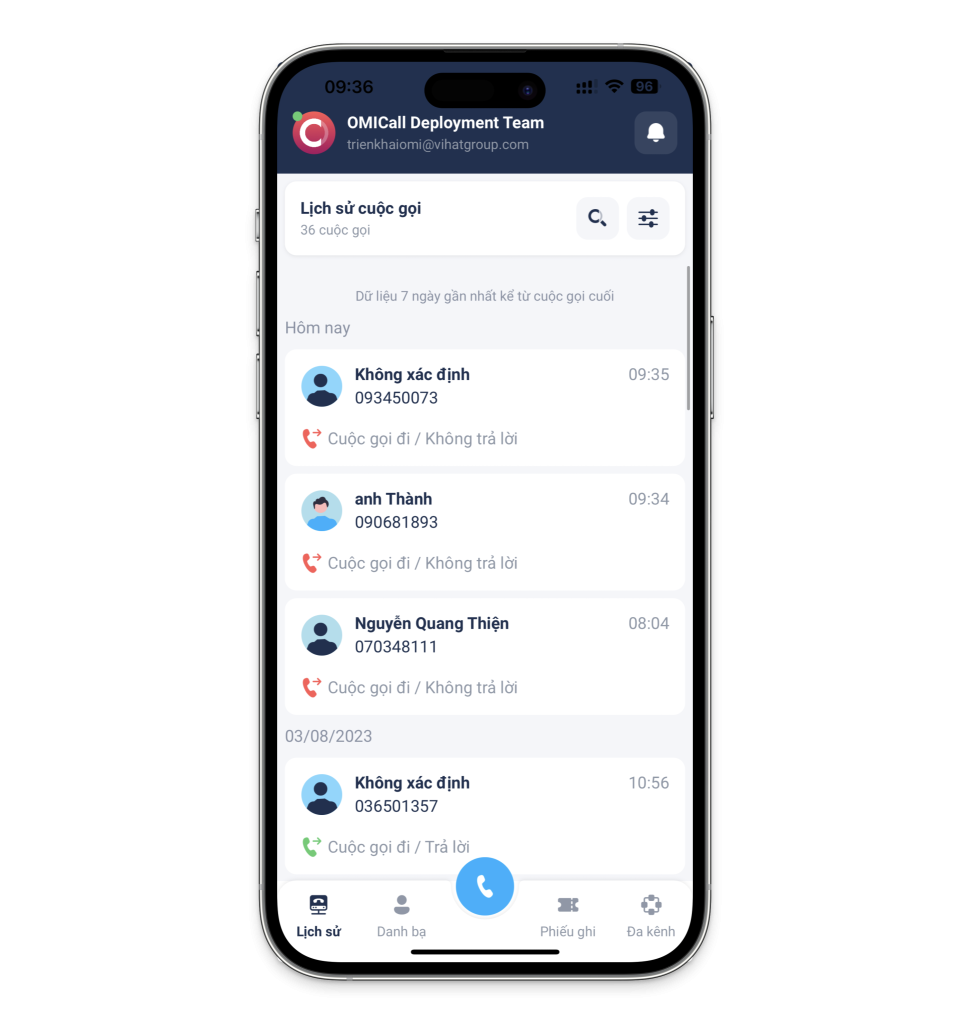
Call history feature on the OMICall app
Call history interface and display scope
The app displays a complete list of calls, including:
- Incoming and outgoing calls from customers.
- Internal calls between employees.
- By default, the system displays the history for the last 7 days.
- Users can filter or search for calls by a desired time range.
View call details and important actions.
Users can tap on a call in the list to open the call details interface with the following functions:
- Add customers: If the phone number isn’t already in your contacts, you can add a new customer immediately to better manage their information.
- Copying the call ID: Each call has a unique ID, which allows for quick lookup when needed for verification or troubleshooting.
- Edit notes : Record important information related to the call for convenient customer service later.
- Redial calls : Easily call back customers directly from the call history interface, saving you time.
- Listen to and download recorded files : With recorded calls, users can listen to them directly or download them for storage. This supports service quality management and employee performance evaluation.
- View customer details : If the phone number is already saved in the system, you can quickly access the customer’s profile to view contact history, notes, and other important information.
Benefits of the call history feature
- Easy management : Store all call information, giving businesses better control over the communication process.
- Enhanced customer service : Easily access call history, notes, and redial calls whenever needed.
- Support for monitoring and evaluation : Listen to the recorded files to improve service quality and train staff.
- Save time : Intuitive interface and quick operations optimize work efficiency.
3.3 Contacts Feature
The Contacts feature in the OMICall app helps users centrally manage all contact information from various sources, ensuring a convenient, seamless, and professional workflow and customer service experience.
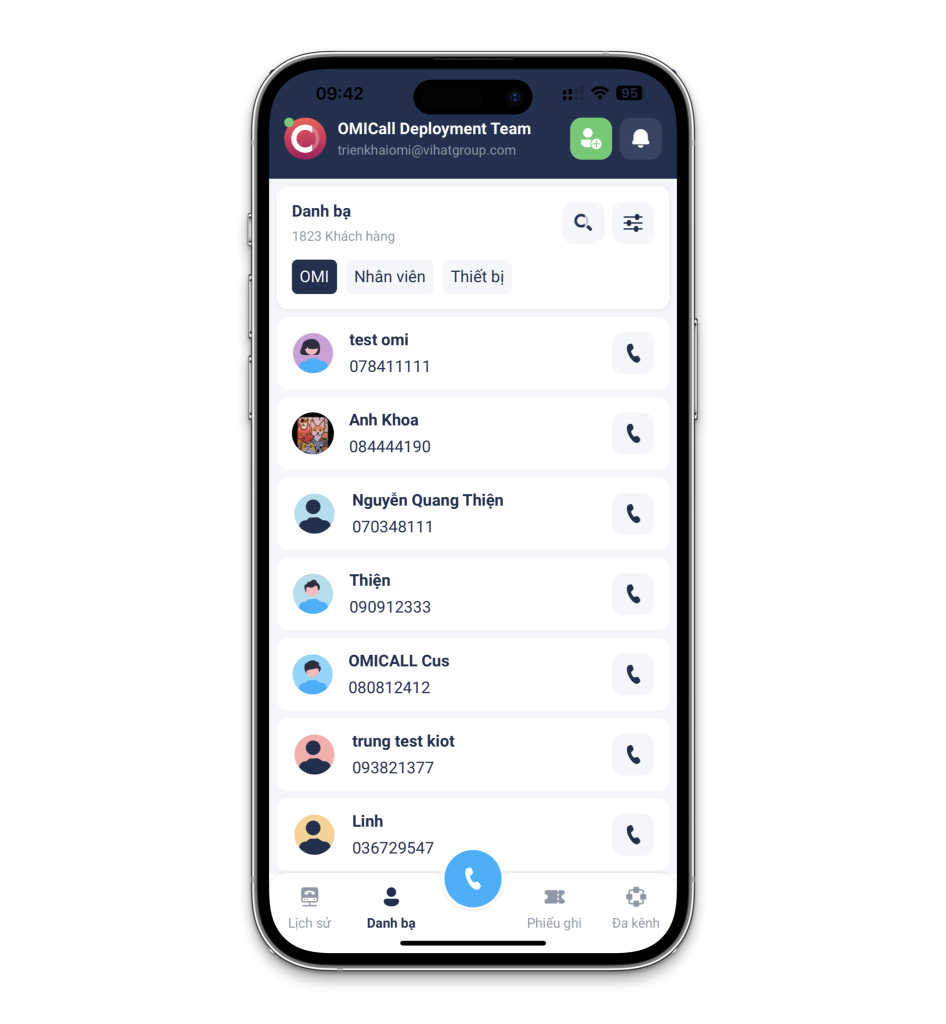
Contacts feature
Contact structure in the OMICall app
The app’s contacts are clearly categorized by group, making it easy for users to search and manage them.
- OMI : The customer list has been stored on the internal CRM system (OMICRM).
- Employees : A list of internal phone numbers for employees within the organization.
- Device : Personal contacts are synchronized from the user’s mobile device (smartphone).
Thanks to this classification, users can quickly identify the relationship between each contact and choose the appropriate approach.
Add and manage customers
- Click the “+” icon to add new customers to your contacts.
- Users can easily update and edit information at any time.
- Swipe left on the customer section to quickly edit or delete a customer from your contacts.
Customer details interface
When you select a contact from your address book, the screen will display details including:
- Customer name
- Phone number
- Date of birth
- Description (a brief description of the customer)
- Tags (customer classification groups based on usage purpose)
- The most recent call record helps track interaction history.
Here, users can make quick calls to customers with just one tap. They can also directly edit customer information if data updates are needed.
Benefits of the Contacts feature
- Centralized management : Consolidates customer data from CRM, internal staff, and personal devices.
- Save time : Quick search, instant calling, instant editing.
- Optimize workflows : Synchronize contact data to facilitate efficient calling, customer care, and follow-up.
- Better customer support : Thanks to comprehensive and continuously updated information, staff can personalize calls and enhance the customer experience.
3.4 Record Sheet Features
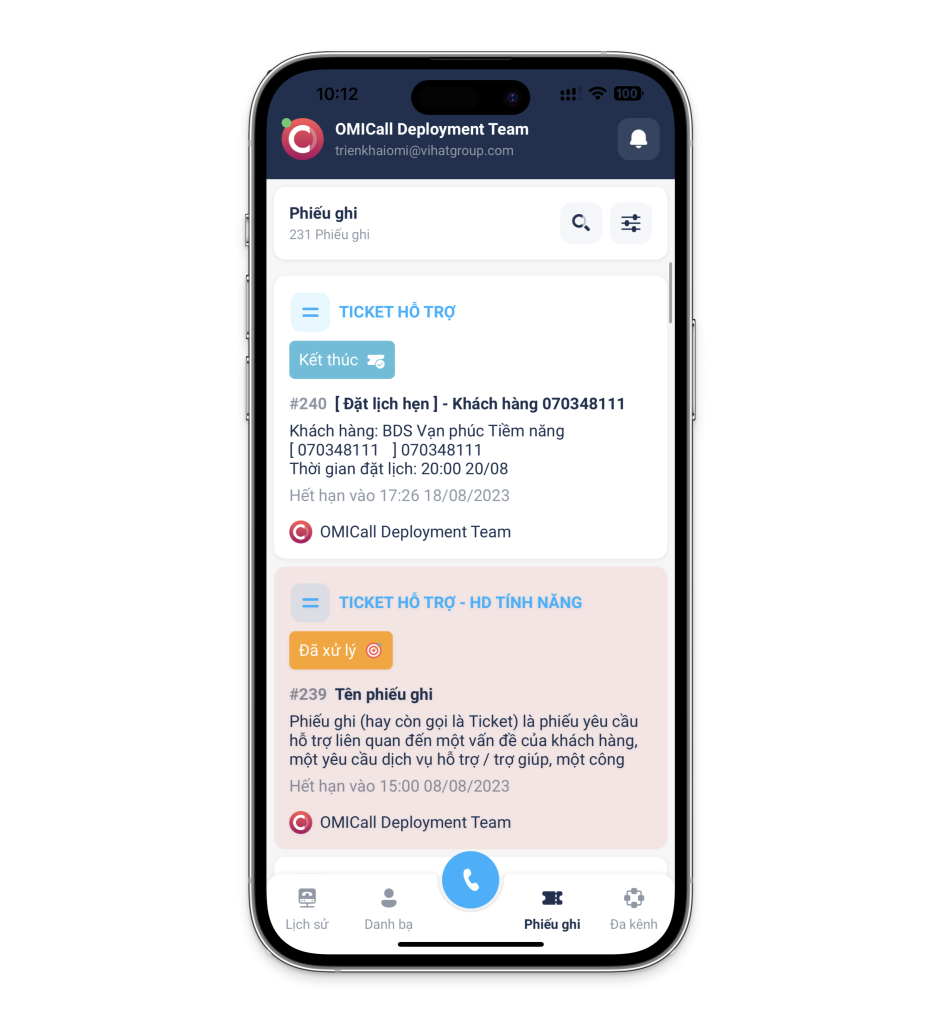
Record Sheet feature
The Ticket feature is a tool that helps businesses record, assign, and track the processing of specific issues, requests, or tasks related to customers or internal personnel. This solution helps manage tasks systematically, ensuring that all issues are handled by the right person, at the right time, and without being overlooked.
What are these forms used for?
- Handling customer support requests: When customers encounter problems or need advice, staff can create a support form to track the progress of the request.
- Internal requirements: Used to assign tasks between departments, or from management to employees, ensuring clear responsibilities and deadlines.
- Progress tracking: This helps businesses gain an overview of the status of ongoing issues, who is responsible, and the timeframe for resolution.
Interface and content of the record form
Each form consists of two main tabs: Details and Interaction.
Details tab – Manage content and work progress
This tab will display all the basic information of the receipt, including:
- Priority: Classification of urgency level (High, Medium, Low).
- Status: Tracks processing status such as Newly Created, In Processing, Completed.
- Title: Briefly describe the main contents of the form.
- Detailed description: Clearly state the requirement or problem to be solved.
- Employee and job: The person assigned to process the receipts.
- Reminder time: Set up notifications so you don’t miss deadlines.
Interaction Tab – Activity log related to the record
This tab is responsible for saving the entire interaction history, including:
- Change the status of the record.
- Additional notes during processing
- Upload the attached file, relevant supporting documents.
- Who updated it, and when?
Benefits of using the Ticketing feature
- No requests are overlooked: Every task is recorded, ensuring nothing is forgotten or processed late.
- Clear assignment of responsibilities: Who handles something, when, is transparent and easily traceable.
- Track progress easily: Managers can monitor the processing status of each request and intervene promptly.
- Optimize team coordination: Increase the effectiveness of collaboration between departments and employees during the work process.
3.5 Account Features
The Account feature in the OMICall app allows users to manage personal information, adjust call center settings, change passwords, check connection status, and submit support requests when needed.

Account Features
The main functions in the Account feature.
Switch between Online/Disconnected status
Users can easily toggle the Online or Offline status of their call center. When online, users can receive and make calls as usual. When offline, the system will not receive incoming calls but will still save the call history for later reference. This mode is particularly useful when staff need to temporarily stop receiving calls for a certain period of time.
Personal – User Information Management
- Change your profile picture to personalize your account.
- Update your personal information such as name, email, and contact phone number.
- Businesses can easily identify employees when using an internal telephone system.
Call center – Check connection information
- Displays the phone number that the account is connected to.
- View the user’s internal number for convenient communication within the system.
- It’s easy to check the connection status with the PBX system, helping to ensure uninterrupted work.
Change password
- Allows for quick and secure password updates.
- We recommend that users set strong passwords (including uppercase letters, lowercase letters, numbers, and special characters) to enhance account protection.
Language – Switch to multilingual interface
- Supports quick switching between Vietnamese, English, and Khmer (Cambodian) languages.
- It helps international users or employees working in multinational environments to use the application more easily.
Device – Check application permission status
View the application’s permission status for important functions:
- Microphone – For making calls.
- Contacts – Synchronize customer lists.
- Notifications – Make sure you don’t miss any important calls or information.
If the app doesn’t have sufficient permissions, the system will guide the user to grant them again in the phone’s settings.
Request support – Send your request to the OMICall team
Users can create support requests directly on the app if they encounter problems or need advice from the OMICall team. We will provide prompt support in cases such as:
- PBX connection error
- Account or login issues
- Call errors or in-app feature malfunctions
The system will record and respond as quickly as possible to ensure an uninterrupted experience.
Benefits of the Account feature on OMICall
- Proactive control : Users can easily manage their personal accounts and configure the PBX system according to their needs.
- Flexible and convenient : Change device status, language, password, or settings in just a few taps.
- High security : Allows password changes and access control, ensuring information security.
- Quick support : Integrated support request feature allows users to contact the OMICall team directly when they need assistance.
Hopefully, with the above instructions, businesses can understand how to use the OMICall app to improve communication, customer care, and internal management.
For further information, please contact:
VIHAT TECHNOLOGY Co., Ltd
Headquarters: ViHAT Building – 06 Street No. 16 (Him Lam Residential Area) – Hiep Binh Chanh Ward – Thu Duc District – Ho Chi Minh City
Hanoi Branch: Floor 15, LADECO Building, 266 Doi Can, Ba Dinh, Hanoi
Cambodia Branch: Thida Rath #154 St. 33MC, Sangkat Steung Meanchey, Khan Mean Chey, Phnom Penh

-
 What is TikTok advertising? Advertising policies and how it works.
-
 Exploring Conceptual Selling – Understanding Modern Sales Trends Correctly
-
 What is a KOC? Distinguishing between KOLs and KOCs.
-
 What Are Customer Insights? Revealing How to Effectively Uncover Them
-
 What is Digital Marketing? 10 Effective Forms of Digital Marketing
-
 What is Online Marketing? Types of Online Marketing